
Office Process Automation: Automate 5 Workflows Step by Step (With Tool Overview)
Process automation means: a workflow that today makes someone on the team stop what they're doing every single time now runs on its own, following fixed rules. A trigger starts it, and software handles the steps.

Process automation means: a workflow that today makes someone on the team stop what they're doing every single time now runs on its own, following fixed rules. A trigger starts it, and software handles the steps. People only step in when something deviates from the standard case.
This guide presents five office workflows worth starting with. For each one, you'll see what triggers it and which steps a tool takes over. We then compare the common automation tools and show where AI actually helps.
Which Workflow Is Worth Automating First?
Start with the most frequent workflow. The most exciting one can wait. A good candidate meets most of these criteria:
- It happens often: daily or several times a week.
- It follows rules: whoever handles it rarely has to think it through from scratch.
- The data is already digital: as an email or PDF, not only on paper.
- Mistakes have consequences: an inquiry that falls through the cracks or an overlooked invoice costs money.
Do a rough calculation: how often per week does the workflow occur, and how many minutes does it take each time? Example: 20 inquiries a week times 6 minutes adds up to two hours. If a workflow has many special cases, automate the standard case first. Everything else keeps going to a person.
Before the First Tool: Write Down the Workflow
You can only automate what someone can describe. Sit down with the person who currently handles the workflow and capture:
- Trigger: What starts the workflow? For example, an incoming email or a date being reached.
- Steps: What happens next, in what order, and in which program?
- Decisions: Where is something checked or approved, and by what rule?
- Exceptions: What happens if information is missing or something goes wrong?
- Outcome: How do you know the workflow is complete?
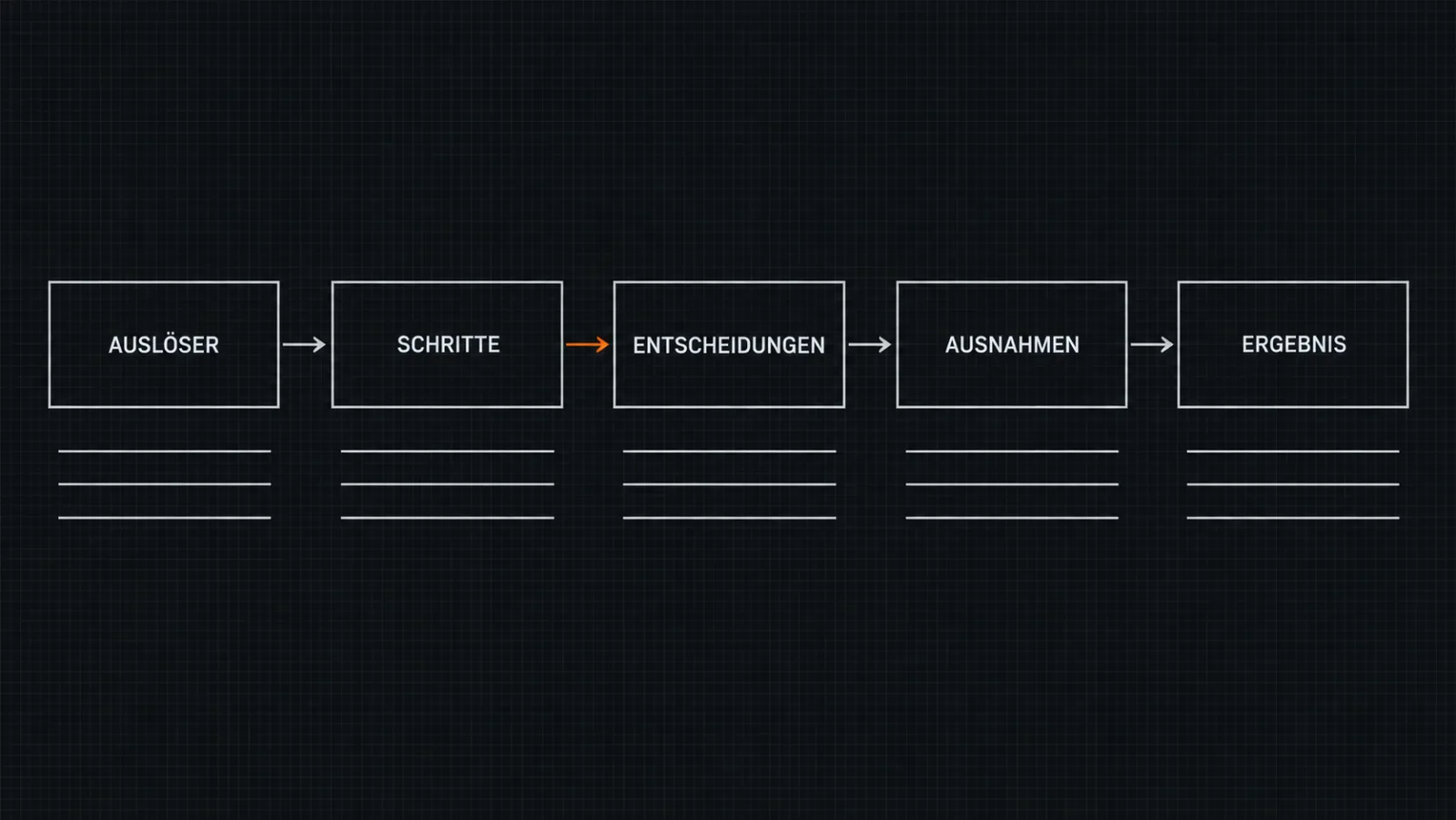
This often reveals that colleagues handle the same workflow differently. Agree on one version first. Automating an unclear workflow just gets you an unclear workflow that runs faster.
5 Office Workflows, Automated Step by Step
The examples build on each other: from the simple if-then workflow to an inbox where AI reads along. The tools mentioned are examples. Which one fits you is covered in the overview further below.
1. Contact Form Inquiries
This is often what it looks like: the inquiry lands in the shared inbox, someone manually enters the name and phone number into the CRM, and replies whenever there's time. By then, the prospect may have already reached out elsewhere.
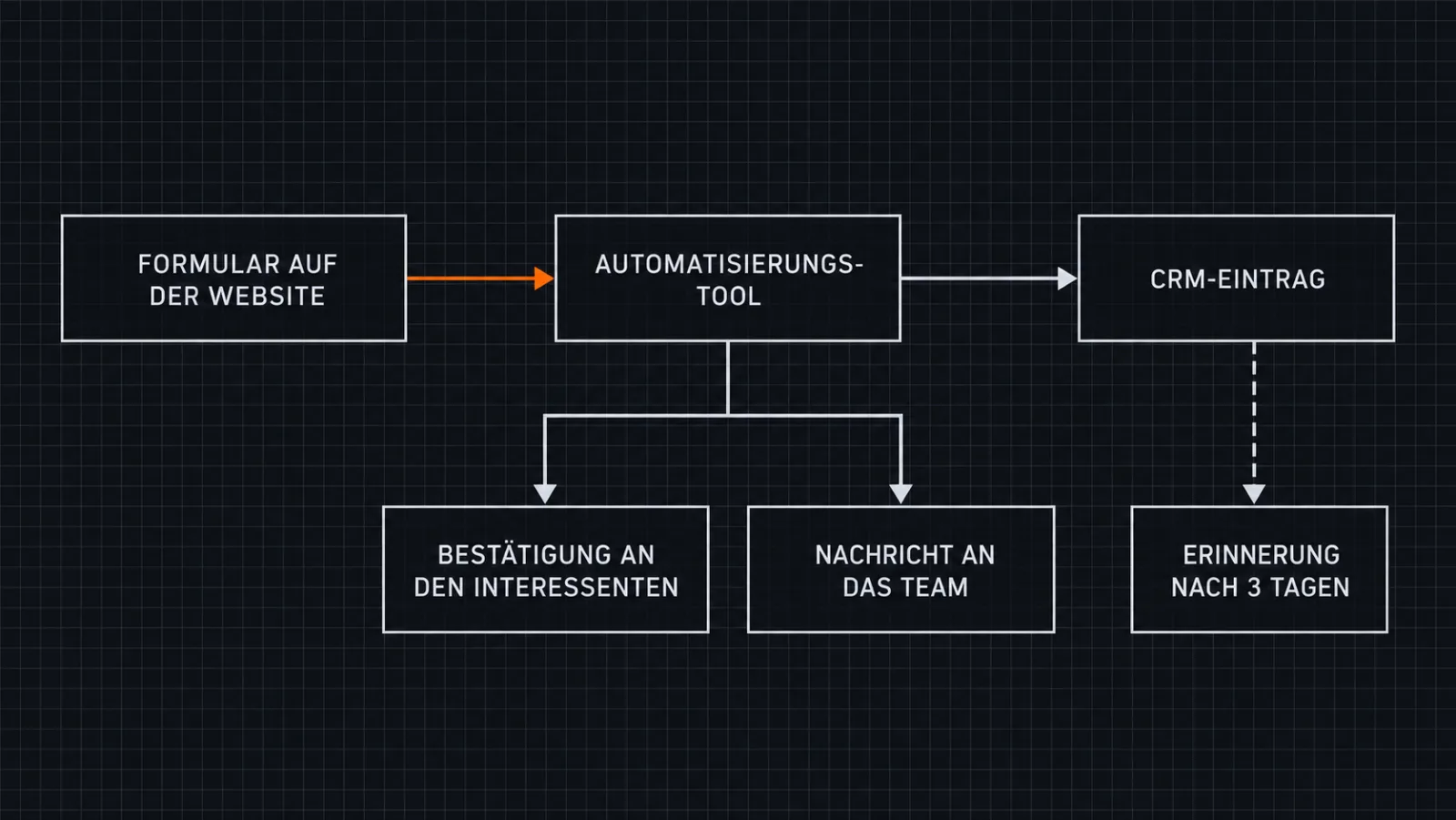
- Trigger: Someone submits the form on your website.
- The automation tool creates the contact in the CRM, or updates it if the contact already exists.
- The prospect immediately receives a confirmation. It states what happens next, along with a link to book an appointment.
- The responsible person receives a message in the team chat or by email.
- If the inquiry is still open after a set deadline, a reminder goes to the responsible person.
Suitable tools: your website's own form or a form tool like Typeform, plus an automation tool like Make or n8n that forwards the data to a CRM like HubSpot or Pipedrive. Make sure form data only flows into tools whose provider you have a data processing agreement with.
2. Appointment Scheduling and Reminders
First, five emails go back and forth before an appointment is set. Then the customer doesn't show up. Both can be automated.
- Trigger: The customer picks an available time via a booking link.
- The booking tool checks your calendar and enters the appointment, including a link for video calls.
- Both sides receive a confirmation.
- Before the appointment, a reminder goes out by email or SMS, with the option to reschedule.
- After the appointment, the CRM creates a follow-up task.
Suitable tools: Calendly or the open-source Cal.com. If you work with Microsoft 365, check Microsoft Bookings first, which is included in some plans. Set buffer times between appointments and limit how last-minute someone can book.
3. Incoming Invoices
Invoices arrive by email, as PDF attachments, on paper, and increasingly as e-invoices. Since January 1, 2025, businesses in Germany have been required to be able to receive e-invoices from other businesses. A good reason to set this workflow up properly.
- Trigger: An invoice arrives in a dedicated inbox, such as invoice@your-company.com, or someone photographs a paper receipt.
- The tool extracts the supplier, amount, invoice date, and due date.
- It assigns the invoice to a cost center and suggests the booking entry.
- The responsible person approves it. Above a set amount, a second approval is required.
- The invoice goes to accounting, gets archived, and the payment is prepared.
Suitable tools: Candis, GetMyInvoices, DATEV Unternehmen online, or Lexware Office (formerly lexoffice). Talk to your tax advisor before making the switch. They usually work with specific interfaces, and archiving must comply with GoBD requirements.
4. Job Applications
Applications come in through job portals and by email. Anyone compiling them by hand loses track and replies late. By then, strong candidates are often already talking to another company.
- Trigger: An application comes in.
- The applicant tracking tool creates a profile and attaches the documents.
- The applicant immediately receives a confirmation of receipt outlining the next steps.
- The relevant department reviews the documents and evaluates them using a fixed scheme.
- If the profile fits, a booking link for the interview goes out (as in workflow 2). If it doesn't fit, the tool prepares a rejection that a person approves.
Suitable tools: applicant tracking tools like Personio or softgarden. Never let software reject anyone without a human reviewing it. Article 22 of the GDPR places tight limits on purely automated decisions, and under the EU AI Act, AI systems that filter or evaluate job applications are classified as high-risk systems.
5. Pre-Sorting the Inbox With AI
This is where AI comes in. Classic automation works with fixed rules: sender X goes into folder Y. A language model, by contrast, recognizes what an email is about even when the sender is unknown and the subject line gives nothing away.
- Trigger: An email arrives in the shared inbox.
- The AI assigns it to a category: inquiry, complaint, invoice, job application, or other.
- Depending on the category, the matching workflow starts. Invoices go into workflow 3, job applications into workflow 4.
- For standard questions, the AI drafts a reply.
- A person reviews the draft and sends it.
Suitable tools: if you use Outlook, Microsoft Copilot is a good starting point; in Gmail, Gemini handles this. A custom workflow in Make or n8n that connects to a language model like GPT or Claude gives you more control. Initially, let the AI only draft replies. Only once the categorization has been accurate for weeks should you release specific reply types for automatic sending. Clarify beforehand where the email content is processed, since customer emails contain personal data.
Tool Overview: Which Automation Tool Fits?
Four tools are common for connecting your programs. Which one fits depends mainly on what software you already use and where your data is allowed to reside. Pricing models change regularly, so check the current terms directly with the provider.
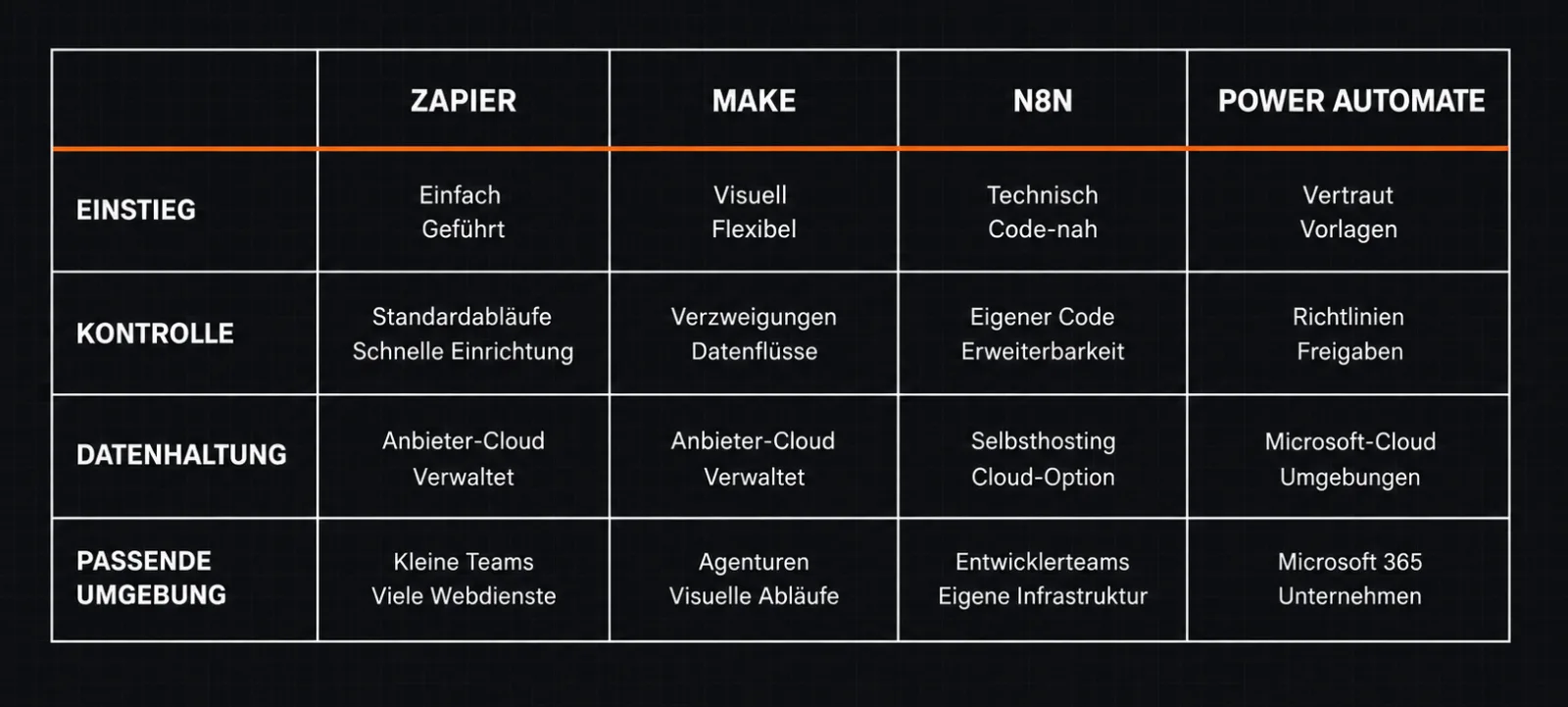
- Zapier: a very large number of ready-made integrations, quick to set up, strong for simple if-then workflows. A US-based cloud service, billed by actions executed.
- Make: a visual toolkit where you assemble workflows with branches as a diagram. Offers more control than Zapier and requires a bit more of a learning curve.
- n8n: based in Berlin and can be run on your own servers, keeping the data in-house. In return, you need someone to maintain the server.
- Microsoft Power Automate: an obvious choice if your company works with Microsoft 365, since Outlook, Teams, SharePoint, and Excel are directly connected. It can also replicate clicks in older desktop programs that lack an interface.
Many programs already come with their own automations. Your CRM may already send reminders; your accounting software may already extract data from receipts. Check that first. Every additional tool is one more point that can fail.
AI Tools for Businesses: Where They Help in Process Automation
AI pays off where fixed rules aren't enough: when text needs to be read, categorized, or drafted. For anything that can be described as an if-then rule, classic workflows remain more predictable.
- Categorizing: assigning emails and inquiries to a category, even when no fixed rule applies.
- Extracting: pulling data from invoices or forms, even when every document is structured differently.
- Drafting: writing replies and summaries for a person to review.
- Handling calls: voice agents answer calls and schedule appointments.
- Looking things up: an assistant with access to your internal documents answers questions from the team.
Well-known AI tools for businesses include ChatGPT's business plans, Microsoft Copilot, Google Gemini, and Claude. If the AI is meant to become part of an automated workflow, you'll usually need API access, which automation tools like Make or n8n can connect to. Two rules always apply: never enter confidential data into a tool without a data processing agreement in place. And always have a person approve anything that affects customers or applicants.
Common Mistakes in Process Automation
- Starting directly in the tool: if you don't write the workflow down first, you end up adding special cases one by one until no one can follow it anymore.
- Starting too big: tackling the entire order processing workflow first means going a long time without a result. A small workflow that's up and running soon convinces the team more easily.
- No one is responsible: automations break when a password or a form field changes. Often the workflow fails silently and no one notices. Set up a notification for failed runs and decide who fixes them.
- Forgetting data protection: every tool that personal data passes through needs a data processing agreement. Keep a list of which data flows where.
- Leaving the team out: whoever has handled the workflow so far knows the special cases. Without that person, you'll build something that misses how the work actually happens.
- Tool sprawl: when automations are spread across several tools, eventually no one keeps track of them all. Stick to one tool wherever possible.
Build It Yourself or Have It Built?
Many companies set up simple workflows like the form inquiry or the booking link themselves. The providers offer good guides for this.
Having it built pays off when several workflows interlock or when AI is preparing decisions. The same applies if no one on the team has time to maintain automations. At that point, it's less about a single tool than about how the CRM, calendar, inbox, and accounting work together.
This is the work RAVARO does. We build digital operating systems from individual building blocks: for customer acquisition from lead to appointment, for candidate acquisition, and for automation with AI, such as GPT employees and voice agents. On request, our operators work directly within your team as performance partners.
Not sure where to start? Take the free System Check. It consists of seven questions and takes 60 to 90 seconds, with no data required and no login. At the end, you'll see your bottleneck along with a recommendation. If you'd rather talk right away, book an initial call: 20 minutes, free for now. You choose the time, and the appointment is confirmed instantly in the calendar.
Want us to look at your company as a system?
Twenty to thirty minutes. No pitch deck. A clear recommendation at the end.
Free analysis